Windows 8 Features which Will Benefit Businesses


Windows 8 Features that will Benefit Businesses
Even though Windows 8 won’t be officially released until October 26, its Metro user interface and Microsoft's decision to remove the Start menu have already received lots of criticism. Some observers have gone so far as to predict that Windows 8 will reduce productivity in office environments.
Nevertheless, Windows 8 has new features and improvements aplenty to consider. So here I’ll introduce many that you—as a business user, owner, or IT administrator—might find useful. There’s something for everyone with improvements to security, networking, virtualization, recovery, and more.

UEFI Replaces BIOS to Enhance and Secure Booting

Microsoft will require that new PCs bearing the Windows 8 logo use a new boot solution called Unified Extensible Firmware Interface (UEFI), which will significantly improve the boot process and experience. It replaces the archaic Basic Input Output System (BIOS) that we’ve used for decades.
Windows 8 and UEFI provide a new advanced boot interface and options, including mouse support.
You’ll see much faster boot times, on the order of 8 seconds from pressing the power button to being in Windows. This, along with less need for restarts, can help increase productivity in the office and save IT personnel time when applying upgrades or installing software.
Safeguards built into UEFI can also help save the IT department time and resources over the long term. Secure Boot prevents unauthorized operating systems from loading, and Early Launch Anti-Malware (ELAM) protects against boot loader attacks. UEFI will also allow remote diagnostics and repair of computers within the pre-OS environment. So instead of physically sending a technician to visit a PC experiencing boot issues, it might be possible to repair and restore the machine over the network.
Though most will enjoy the benefits of UEFI, there has been some controversy over the Secure Boot feature of UEFI that Microsoft is requiring PC makers to turn on by default. It’s not totally clear yet, but Secure Boot may have to be manually disabled for those who want to install or dual boot another OS such as Linux, adding an extra step to the process.

Full Windows Experience on x86-Based Tablets

We’ve seen good enterprise support from BlackBerry smartphones and iOS devices, and business users have adopted these platforms accordingly. We’ll likely see the same with x86-based Windows 8 Pro tablets and tablet-laptop hybrids, as they’ll offer the new metro-style Start screen in addition to the full Windows environment. This means that tablet users can have the same familiar Windows applications, including a full copy of Microsoft Office 2013, and Metro-style apps on both their desktop PC and their mobile device. For IT staffers, this means easier device and network management as they can use an existing Windows management infrastructure.
Bear in mind that these benefits apply only to x86-based tablets loaded with Windows 8 Pro. Tablets with ARM processors running Windows Run Time (RT) will support only the Metro-style apps, so they won’t be able to deliver the full Windows experience.

Windows To Go Lets Users Take Their Workstation With Them

The new Windows To Go feature in Windows 8 Enterprise will allow you put a clean install or an existing Windows 8 image onto a 32GB or higher USB thumb drive or a portable drive and boot it from another PC. This is similar to what you might have seen with Linux distributions running from a live CD or a USB drive. Although booting up a Windows To Go drive is officially supported only on PCs certified for Windows 7 and later, it might also work on PCs running Windows XP and Vista.
Windows To Go can be useful for telecommuters and temporary contractors, because they can essentially fit an entire PC environment--loaded with the all the apps, settings, and files they need--in their pocket and boot into it with their own PC. This would be much more efficient than having to carry a physical computer from place to place. Windows To Go could also make the perfect backup OS for PCs that become infected or corrupt. And it can be managed by and secured with standard enterprise management tools such, as SCCM (System Center Configuration Manager) and Active Directory group policies, just like an ordinary Windows PC. The USB drive can also be encrypted with BitLocker to prevent data theft if it’s ever lost or stolen.

New Network Authentication Types Ease the Connection Process

You’ll find the EAP authentication options when configuring networks.
Microsoft added support for a several new network authentication types to Windows 8. The WISPr (Wireless Internet Services Provider roaming) protocol allows users to roam from one Wi-Fi hotspot connection to the next, regardless of which ISP is running the hotspot, much as a cell-phone user is able to roam between cellular carriers.
The EAP-SIM, EAP-AKA, and EAP-AKA Prime (EAP-AKA') protocols can provide native authentication when connecting to mobile 3G/4G broadband networks. And the addition of support for the EAP-TTLS protocol means that enterprises and campuses won’t need to install a third-party client on PCs when implementing this 802.1X authentication type on their networks.


Networking Improvements Help Network Administrators

Windows 8 and Windows Server 2012 include many new and enhanced networking features useful for administrators. Native NIC (network interface card) teaming provides network connection load balancing and failover by bonding two or more network interfaces. The updated Server Message Block (SMB) protocol improves the availability, performance, administration, and security of file shares and storage resources, with new features like encryption and transparent failover.
The management interface for the new IP Address Management (IPAM) feature in Windows Server 2012.
The new IP Address Management (IPAM) feature of Windows Server 2012 helps admins discover, monitor, audit, and manage a network’s IP addressing. Finally, DHCP (Dynamic Host Configuration Protocol) has also been improved to provide server failover ability and policy-based assignments.

New Recovery Options Simplify Reinstalling Windows

You can access the Refresh and Reset options via the new PC Settings in the Metro-style interface.
Windows 8 brings two new recovery options (Refresh and Reset) that could help save IT personnel and users’ time when a PC becomes infected or corrupt, or when they’re being readied for disposal or reuse. Each of these recovery options can be initiated via the Metro-style Settings app within Windows, via the new boot Windows Recovery Environment (RE) menus, or even via booting from a Windows To Go USB drive.
Refresh keeps all the personal data, Metro-style apps, and important settings, and then reinstalls Windows. According to Microsoft, this can all happen in less than 10 minutes regardless of how much personal data is backed up. While it doesn’t keep the traditional desktop applications, it saves a list of them in an HTML file (without the license keys, however) that will appear on the desktop. If you create an image backup of your PC ahead of time, however, Refresh will restore your PC to that image. This would include any desktop applications that were installed at the time of imaging, and your most current personal data, Metro-style apps, and important settings would all be restored.
Reset removes all data and then reinstalls Windows so the PC is in the same condition as when it was started the first time. According to Microsoft, this can take anywhere from less than 10 minutes if BitLocker encryption is enabled, to up to 25 minutes if it isn’t enabled. The Regular option simply erases and formats the drive before reinstalling Windows, while the Thorough option writes random patterns to every sector of the drive to significantly reduce the chances of data being recovered.

Client Hyper-V Offers Advanced Virtualization

The Hyper-V Manager enables you to create, configure, and manage virtual machines that can stay online during a transfer.
Windows 8 will include a new feature, called Client Hyper-V, that offers the same Hyper-V virtualization capabilities that will be available in Windows Server 2012. Developers, IT administrators, and power users who need to run virtual operating systems inside Windows will have much more advanced capabilities than were available with Windows Virtual PC and Windows XP Mode. This includes support for 64-bit virtual OSs, wireless networking interfaces, and sleep/hibernation modes. Virtual machines can also be moved to and from Hyper-V on Windows Servers, including support of live migrations where the virtual machine can stay online during a transfer.

Even More Improvements

I’ve covered most of Windows 8’s significant new business-related features, but there are many smaller enhancements, too: BitLocker can encrypt hard drives faster now by initially encrypting only used disk space, for example. And AppLocker can control the running of Packaged apps and Packaged app installers. DirectAccess and BranchCache are simpler to deploy. Printer deployment and end-user printing have been simplified with a new native and universal print driver. And a new Claim-based access control scheme offers dynamic role-based access control of files.
The bottom line is that the Metro user interface might take some getting used to, but Windows 8 looks to be a strong operating system for business users.

How to recognize phishing email messages, links, or phone calls

How to recognize phishing email messages, links, or phone calls

Phishing email messages, websites, and phone calls are designed to steal money. Cybercriminals can do this by installing  malicious software on your computer or stealing personal information off of your computer.
Cybercriminals also use social engineering to convince you to install malicious software or hand over your personal information under false pretenses. They might email you, call you on the phone, or convince you to download something off of a website.

What does a phishing email message look like?

Here is an example of what a phishing scam in an email message might look like.
What is phishing
  • Spelling and bad grammar. Cybercriminals are not known for their grammar and spelling. Professional companies or organizations usually have a staff of copy editors that will not allow a mass email like this to go out to its users. If you notice mistakes in an email, it might be a scam. For more information, see Email and web scams: How to help protect yourself.
  • Beware of links in email. If you see a link in a suspicious email message, don't click on it. Rest your mouse (but don't click) on the link to see if the address matches the link that was typed in the message. In the example below the link reveals the real web address, as shown in the box with the yellow background. The string of cryptic numbers looks nothing like the company's web address.
    Phishing scams masked web address
    Links might also lead you to .exe files. These kinds of file are known to spread malicious software.
  • Threats. Have you ever received a threat that your account would be closed if you didn't respond to an email message? The email message shown above is an example of the same trick. Cybercriminals often use threats that your security has been compromised. For more information, see Watch out for fake alerts.
  • Spoofing popular websites or companies. Scam artists use graphics in email that appear to be connected to legitimate websites but actually take you to phony scam sites or legitimate-looking pop-up windows. For more information, seeAvoid scams that use the Microsoft name fraudulently.
    Cybercriminals also use web addresses that resemble the names of well-known companies but are slightly altered. For more information, see Protect yourself from cybersquatting and fake web addresses.

Beware of phishing phone calls

Cybercriminals might call you on the phone and offer to help solve your computer problems or sell you a software license. Neither Microsoft nor our partners make unsolicited phone calls (also known as cold calls) to charge you for computer security or software fixes.
Once they've gained your trust, cybercriminals might ask for your user name and password or ask you to go to a website to install software that will let them access your computer to fix it. Once you do this, your computer and your personal information is vulnerable.
Treat all unsolicited phone calls with skepticism. Do not provide any personal information.
For more information, see Avoid tech support phone scams.

Report phishing scams

If you receive a fake phone call, take down the caller's information and report it to your local authorities.
You can use Microsoft tools to report a suspected scam on the web or in email.
  • Internet Explorer. While you are on a suspicious site, click the gear icon and then point to Safety. Then click Report Unsafe Website and use the web page that is displayed to report the website.
  • Outlook.com (formerly Hotmail). If you receive a suspicious email message that asks for personal information, click the check box next to the message in your Outlook inbox. Click the arrow next to Junk and then point to Phishing scam.
  • Microsoft Office Outlook 2010 and 2013. Right-click the suspicious message, point to Junk, and then click Report Junk.

Downgrading to windows 8


Downgrade to Windows 8

Are you disappointed in Windows 8.1? Don’t like how it works compared to Windows 8 or did something go wrong during the upgrade? This is the time to use your previously created system image to “downgrade” to Windows 8.
As mentioned previously, you can’t use your Windows 8 system image on Windows 8.1 because essentially, it’s a different operating system. So this is not a downgrade at all, but rather a very time intensive brute-force system restore. And here is how you do it…
First, you have to replace Windows 8.1 with a fresh installation of Windows 8 using your original installation media or the ones you created prior to upgrading. Once you’re back in Windows 8, use a Windows 8 recovery disk or restart to recovery options from the Power menu. Hold down the left [SHIFT] key and select Restart. A moment later you should find yourself in the recovery environment.
Windows 8 Restart Into Recovery

Within the recovery environment, go to Troubleshoot, Advanced Options, and finally System Image Recovery. You will need to choose the target operating system; select Windows 8.  Make sure the drive containing the system recovery image is connected, select the image you want to restore, proceed to the Next window, clickFinish and confirm that you want to continue.
Windows 8 System Image Restore

Windows should now re-image your computer and if all goes well, you will be back in your old Windows 8 setup in just under a day. Well, nobody claimed it was fast or easy, but with some tedious detrous, at least it’s possible.

Final Destination: Windows 8.1

No doubt, Windows 8.1 is an improvement. It’s more stylish and user friendly than its predecessor. The sad part about this whole story is that it is near impossible for the average user to “downgrade”.
Although Microsoft is trying hard to simplify and build a smooth user experience, they keep failing in the details. Users have become used to certain features and still expect Windows to be somewhat customizable and controllable. This collides with simplicity and flexibility, which in this case makes preparing for a “downgrade” — which really isn’t a downgrade, but a full system restore — such a tedious process.
What is your verdict? Is is worth upgrading to Windows 8.1? If you decided to roll back, what was your main reason?
Enjoyed this article?

How to Distance yourself from a unwanted Facebook friend without Unfriending

A relative of mine asked me recently, “What can I do if I don’t want to see someone’s updates on Facebook, but I’d rather not unfriend or block them?”
Here’s how to make it seem like you have unfriended a person.  It’s a two-step process.  First, you will prevent their updates from showing up on your news feed (the page you see when you first log into Facebook). Then, you can prevent them from seeing your updates.
Of course you could always go ahead and un-friend someone – they will not be notified.  But it could create an awkward situation, depending on the person and your relationship.  So it’s nice to have this option.

Prevent a friend’s updates from showing up on your Feed:

1. Go to your friend’s profile/timeline page by clicking on their name.  Hover over the Friendsbutton, and then wait for a drop-down list to show up:
Friend settings in Facebook
2.  Usually you will see that “Show in News Feed” is selected.  Unclick “Show in News Feed” and you will no longer see that person’s updates in your feed.
3.  Alternatively, click “Settings…” and then remove the checkmarks from the types of updates you don’t want to see.  In this example I only want to know about most of this person’s “Life Events” but I won’t have to suffer through their mundane status updates, endless photos, and Song Pop victories.
Only show most updates in Facebook
Now that you have limited what you’ll see about this person, go ahead and limit what they’ll see about you.

Add your friend to your “Restricted” list to prevent them from seeing what you share

Facebook provides a few built-in “Lists” for categorizing your friends.  You can use these lists to control who you share with.  One of the lists is called “Restricted”.  When you add someone to your “Restricted” list they will only be able to see your “Public content or posts of yours that you tag them in”.  It works like this:
  • Share an update with “Friends” Friend icon, people in your “Restricted” list won’t see it.
  • Share an update with “Everyone” Globe icon, people in your “Restricted list will see it.
  • Tag your friend in an update, they will see it even if they are in your “Restricted” list.
1. Hover over the Friends button again and this time choose “Add to another list”.
2. Select “Restricted”.
3. If this person was in another list, select that list to un-check and remove them from the list.
Add a friend to the Restricted list in Facebook
Now test your new settings.  Go to your profile, click the little gear button and choose “View as”.  Then enter that person’s name to get a sense of what your now-Restricted friend will see about you.  (Learn more about Viewing your Facebook Timeline as someone else)

Is this fool-proof?

No.  There are a few other settings that could expose some of your information to the friend you are trying to ditch.
For example, if you have a mutual friend in common, and that mutual friend tags you both, then your friend might see that you’ve been tagged.
Or, if you and your “frenemy” both follow a public page on Facebook like…uh…good example here….okay let’s say you both follow that Star Trek guy George Takei, and you click “Like” on George’s funny picture, then your friend could potentially see that you’ve liked it.  That’s because she is also a fan of George and George’s post are available to “Everyone”.
So while there is no guarantee of total erasure of this person from your Facebook life, this is about as close as you can come to unfriending or blocking a person

Confused ? As Battery Capacity some times in Laptop you will get Wh but generally in Mobile devices mAh ?

Laptop Battery Capacity:

How does whr or simply Wh converts to mah?


converting watt-hour (Wh) to milliampere-hour (mAh).
Watt-hour to milliampere-hour calculation formula

The electric charge Q(mAh) in milliampere-hours (mAh) is equal to the energy E(Wh) in watt-hours (Wh) times 1000 divided by the voltage V(V) in volts (V):
Q(mAh) = E(Wh) × 1000 / V(V)
So milliamp-hour is equal to watt-hour times 1000 divided by volts:
milliamp-hour = watt-hour × 1000 / V
or
mAh = Wh × 1000 / V

Watt Hour = Volts x Amps x time in hours 

Watts = Volts x Amps; Amps = Watts/Volts 


Example
Find the electric charge in milliamp-hour when the energy consumption is 3 watt-hour and the voltage is 5 volts.
The electric charge Q is equal to 3 watt-hour times 1000, divided by 5 volts:
Q = 3Wh × 1000 / 5V = 600mAh

Depending on the cell connection scheme, the nominal Lithium Ion battery pack voltage can vary from 7.2 V to 14.8 V (typical voltages for major brands are: 11.1 to 14.8 V for Dell laptop battery, 10.8 to 14.8 V for Toshiba, Apple, Gateway and IBM laptop batteries, 7.4 to 14.8 V for Sony, 7.2 to 14.8 V for HP, 14.4-14.8 V for Compaq). Note that the voltage rating of a laptop power supply is not necessarily the same as nominal battery voltage.

Say a battery is rated 53 WHr and the nominal voltage is 12.5 volts. 
53 WHr/12.5 Volts = 4.24 Amp-Hr 
4.24 amp-Hr x 1000 milli-amp/amp= 4,240 mah 

Ooredoo internet settings for the router


Its thw configuation of Tp-ling router on Qtel's configuration


In home Broadband Router there is nothing special 

  • just select   vpi/vci 8/35  (Like 8/81 in NTC adsl)
  • atm
  • Pppoe
  • give your username and password generally username your phone number and password is 123 default 
  • for tv just connect it in port number 4 of your lan port and it will work
  • Other common configuration, ....you should be familiar with it...


Firefox youtube video problem; Why is there a green line in my youtube videos?

I use Facebook in Chrome / Firefox, and recently I tried playing a YouTube video that someone posted on their wall. The static image of the video (that you see before you click the play button) looked fine. But when I clicked the play button, the video playback area was split across the center by a green horizontal line, and there were two, squashed, duplicates of the video playing above and below the line.

I thought it might be a Facebook issue, so I opened the same video up on the YouTube site, but with the same results.
I am writing how i just solve the problem


  • So I tried it in IE8 and it worked just fine. 
  • I figured the problem might be an outdated version of the Flash player for Chrome, so I updated the Flash player, making sure that I selected the "other browsers" version of the player, but the problem was still there.
  • I just uninstall the browser and againg re-install it but there i found the same problem
  • I just update the display driver of my computer and restart the computer but this time also i faced the same problem.
  • lastly i just get helped from my friend and as he said just to disable the hardware acceleration of the flash player itself so i just did the same and i worked fine... I dont know why it doesnot work with hardware acceleration..but it resolved anyway...

Why I can not open a particular website from my Computer when every one else in the world can open it

Today I was trying to open a website which is not opening from my computer but it's okey in other computer on the same lan and just checked through   www.downforeveryoneorjustme.com  and www.isitdownrightnow.com but there it's working and up.....


I am writing what i did to resolve it


  1. I check the hosts file (C:\Windows\System32\drivers\etc)  its all right 
  2. I remove the pc from my domain thinking that it has the same domain as it website domain but did not work
  3. I flush the dns (in commnad prompt ipconfig /flushdns) again it didnot work
  4. I tried deleting cookies, internet files, etc... to see if it changes anything, checkec from another browsers...
  5. I Checked if I have accidentally blocked that website using any software like parental control software or maybe through your system firewall or any third party software
  6. Going to Start > Run ; Typed iexplore -extoff  Pressed Enter  Once IE loads tried to access my page.
  7. I change the static ip to dynamic every thing for dns also ...as i have dhcp enabled router 
  8. I then change the Dns to public dns of google... 8.8.8.8  ; 8.8.4.4
    now it worked .
If you are also facing the same problem you might get helped though this...
La decrease ur headache and Enjoy!!!

How to temporarily disable Microsoft Security Essentials

Now a days as a free antivirus as it doesnot work as smoothly as a antivirus everybody prefers either avg free or Microsoft security essentials or avast but in other just right clicking we can get this option of stoping its action for temporary time period but its not easy like that ...
When it comes to keeping my PC secure, I rely on a small handful of tools: Windows 7's built-in firewall, Gmail's spam filtering, Web of Trust's helpful browser plug-in, and Microsoft's free Security Essentials anti-virus utility.At this risk of jinxing things, here's my score to date: My PC: 1. Malware of any variety: 0.However, I recently needed to troubleshoot a program that wasn't working properly, and, as always, the tech support department's first suggestion was to "disable my antivirus program."Normally I ignore this advice, but because the program in question involves a lot of file downloading from various protected servers, I thought it might actually be worth a try. Just one catch: How the heck do you disable Security Essentials?When you open the tool, there's no immediately obvious way. But if you absolutely need to, here's how:1. Find the Security Essentials icon in your System Tray (usually it's represented by a little green house with a flag on top). Right-click it and choose Open.2. Click the Settings tab.3. Click Real-time protection.4. Uncheck the box next to Turn on real-time protection (recommended).5. Click the Save changes button.So that's the equivalent of switching Security Essentials to "off." Do that, then go back to whatever you're trying to troubleshoot and see if it solves the problem. (If it does, well, that's a whole other can of worms.)When you're done troubleshooting, repeat steps 4 and 5 (this time checking the box, natch) to turn Security Essentials back on.la moj garnus


Connect to Ubuntu 12.04 (Precise Pangolin) via Windows Remote Desktop

Connect to Ubuntu 12.04 (Precise Pangolin) via Windows Remote Desktop

Want to connect to Ubuntu 12.04 from Windows 7 via Remote Desktop Connection? Well, it’s now easy to do it with xRDP server. In the past, it was almost impossible to do but thanks to xRDP, you can easily use Microsoft RDP to connect to Ubuntu without any configuration.
All you need to do is install the xrdp package, then open Remote Desktop Connection from Windows and connect. That’s it, nothing to configure.
Without wasting anymore of your time, let’s get going.
Objectives:
  • Connect to Ubuntu from Windows via RDP Protocol
  • Enjoy!
To get started, press Ctrl – Alt – T on your keyboard to open Terminal. When it opens, run the commands below to install xRDP package.
sudo apt-get install xrdp

xrdp_precise

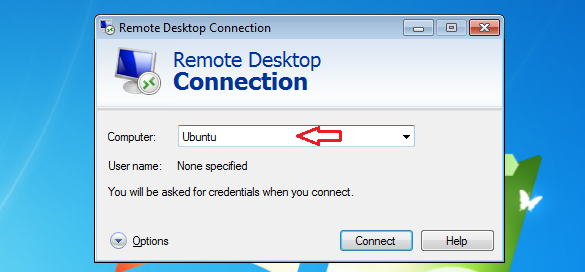
Next, open Windows’ Remote Desktop Connection and type Ubuntu hostname or IP address.

xrdp_precise_1

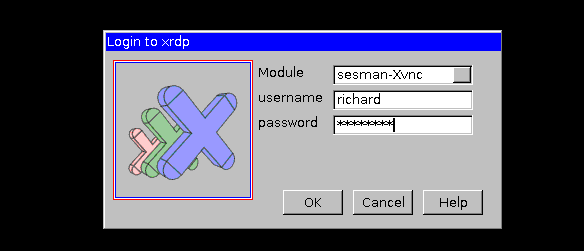
When prompted, type your Ubuntu username and password to connect.

xrdp_precise_2

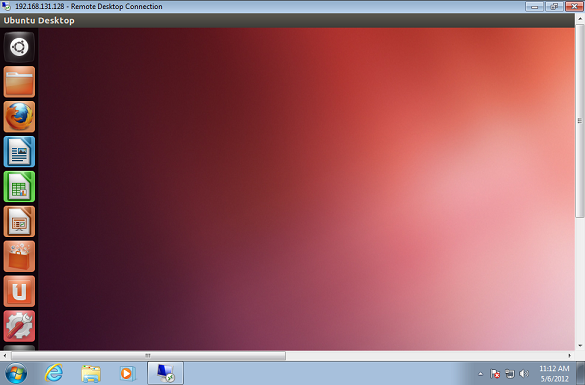
Enjoy!

xrdp_precise_3

If you have a problem connecting, run the commands below and restart Ubuntu, then try again.
echo "gnome-session --session=ubuntu-2d" > ~/.xsession

Or install gnome session fallback.
sudo apt-get install gnome-session-fallback