When installing or trying the
LiveCD version of Ubuntu from a CD, your computer has to be able to boot from that CD. Usually this consists of just inserting the disk into your CD/DVD drive and rebooting your computer. Sometimes though this doesn't work, or just not as expected or planned. Here are some common problems and how to fix them.
Check and make sure that the disk was burned properly. If you bought an original CD from a (web) store, then you should not have to worry about this section. If you have not yet burned the downloaded ISO image from the
Official Ubuntu Download Page to a disk, then head on over to
BurningIsoHowto for directions.
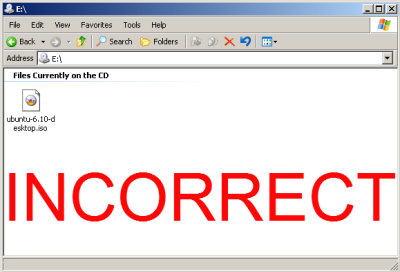
In your current operating system when you navigate the CD that you burned, you should see multiple directories and files, not the single .iso file. If you see just the single .iso file when browsing to the CD, it has been improperly burned and you will have to burn it again following the instructions at
BurningIsoHowto.
-
Incorrect CD file display. You will have to burn it again following the following instructions at
BurningIsoHowto.
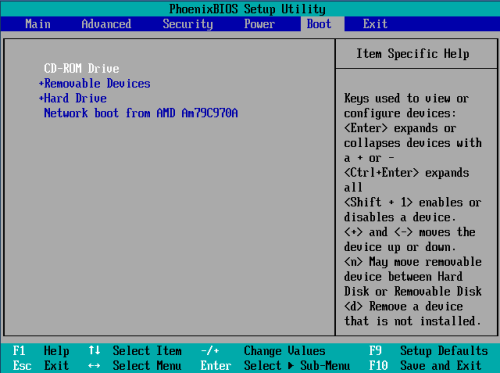
Some computers are set to boot directly from the hard drive. This should be as simple as entering the BIOS, enable booting from the CD-ROM drive, and making sure that the CD-ROM is before the hard drive in the boot order.
The most common way to enter the BIOS is to press the DELETE key when the computer is first booted(this seems to be becoming standard). On other systems it could be a different key, or combination of keys like ESC, F1, F2, F10, F12, Ctrl-Esc, Alt-Esc, Ctrl-Alt-Esc, Ctrl-Alt-Enter, Ins or even others. You might have to press, press and hold, or press multiple times. The best way to find out the details of that is to look in the users manual or search the manufactures website. A few different
Bios screens.
Some computers require you to hold down or press a key to enable booting from the CD drive, the best place to find this information is in your computers user manual or the manufactures website. Here are some common keys to try if you lack that information.
A large number of CD/DVD drives have problems running under AHCI/Raid mode (from not working at all to refusing to boot).
Either plug drive into another SATA port that isn't set to AHCI/Raid or if that can't be done go into BIOS and set mode of SATA ports to IDE/Compatibility mode.
(WARNING: if your Boot drive is plugged into same group of ports it may fail to boot after change(and obviously any Raid arrays will fail also)).
Some computers will only allow booting from one CD or DVD drive even though you have 2 or more CD/DVD drives. So try the disk in each of the drives while rebooting the computer.
Some manufacturers provide BIOS updates that can correct this issue. For a BIOS update, please check with the manufacturer.
A workaround is available if you can read from your CD-ROM drive, but can not boot from it. You may be able to use the
SmartBootManager on a floppy disk to force your computer to boot from the CD-ROM drive.
Some drives are just too old and do not support booting and will require you to:
If you have arrived at this prompt, you have successfully booted from the CD. But if you can not get any further, you may want to try some optional bootParameters to get you running.
If unfortunately none of these options worked for you, there are still other options. Please take a look at 'Installation without a CD' and 'Network Installations' on the
Installation page.
Most newer computers can boot from USB. You should see a welcome screen prompting you to choose your language and giving you the option to install Ubuntu or try it from the CD.
If your computer doesn’t automatically do so, you might need to press the F12 key to bring up the boot menu, but be careful not to hold it down - that can cause an error message.